Komms · Tour
A tour of the Komms interface
Komms reduces talk time 30–40% vs. your agents on the same script.
- $0.08 a minute, phone call included
- $15/mo per phone number
Every campaign sits under three menus: Flow, Activity and Setup. These are the screens behind each one, taken from our own test campaign.
Flow
What the agent says and where each answer leads.
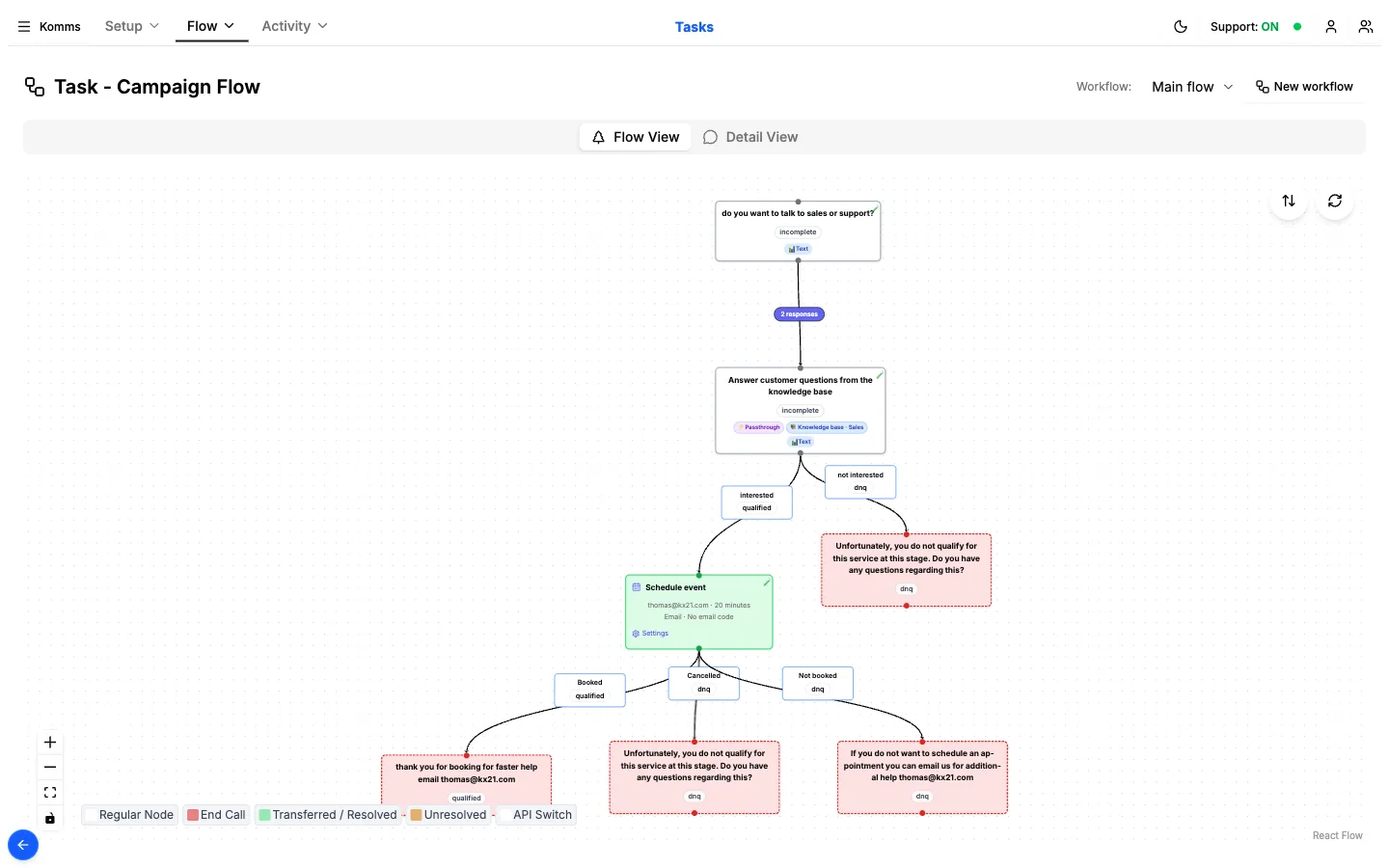
Tasks
The campaign as a flow. This one asks sales or support, answers questions from the knowledge base, then books an appointment on a connected calendar.
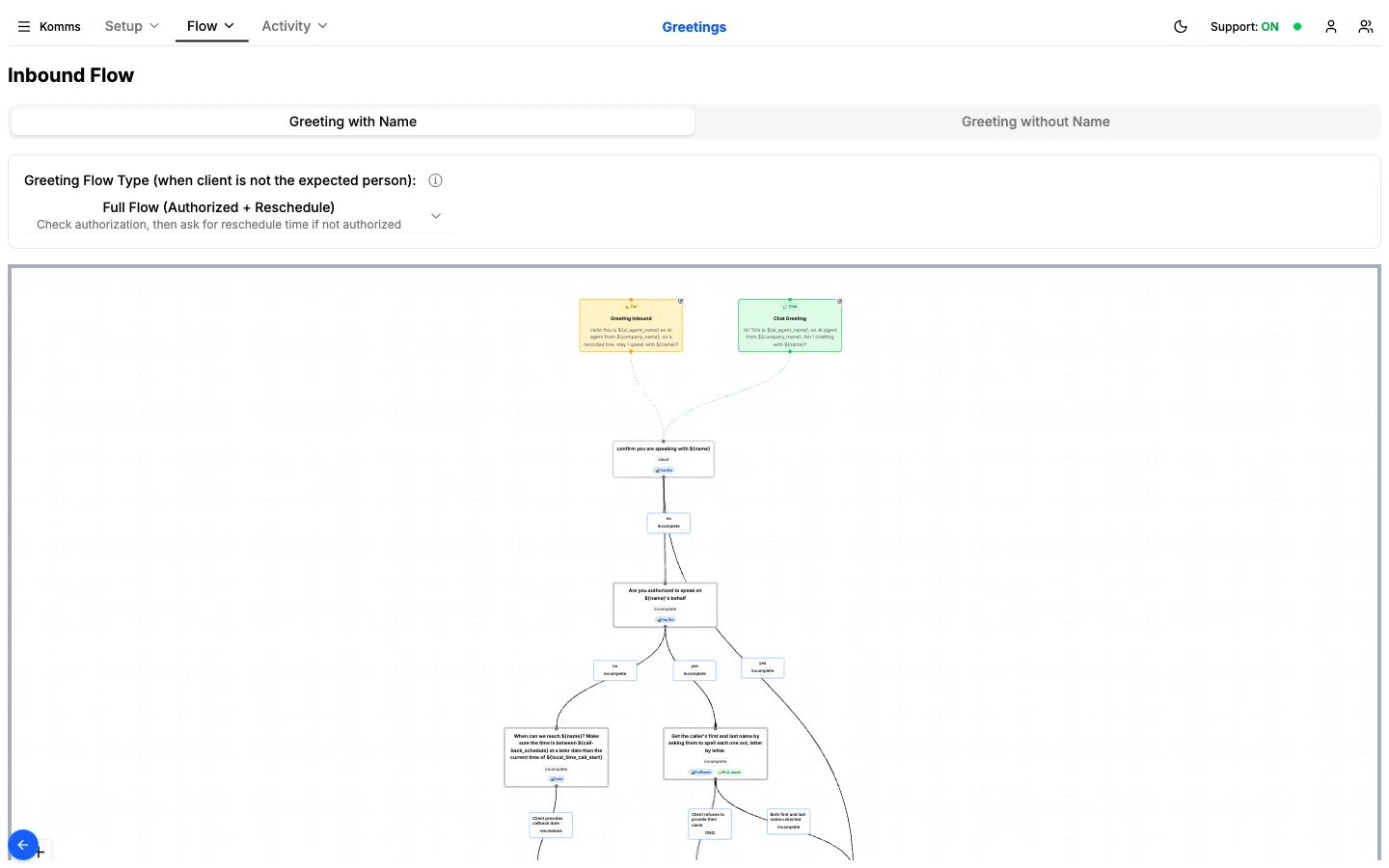
Greetings
The opening lines for calls and chats, and what happens when the wrong person answers.
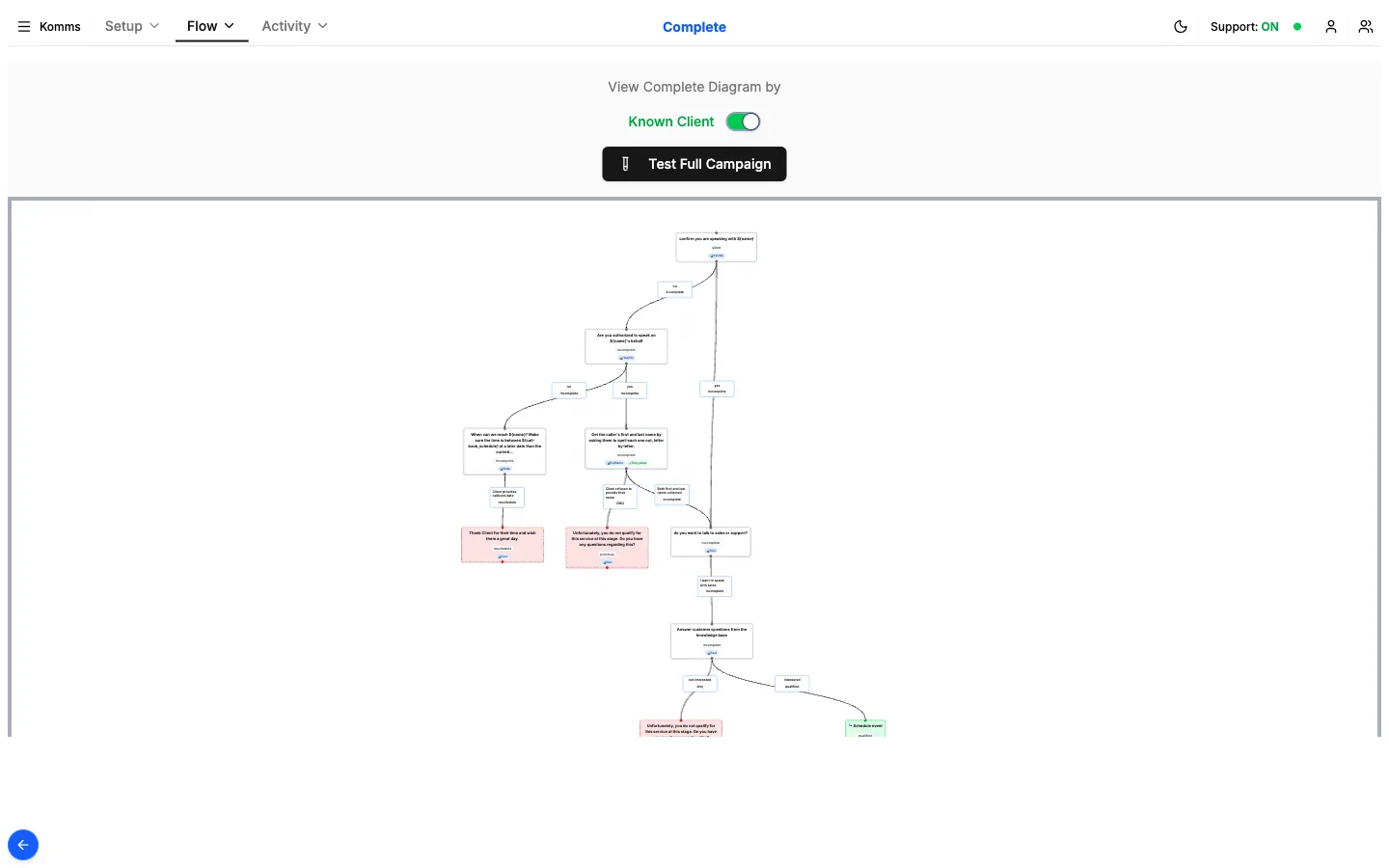
Complete
The whole campaign in one diagram, from greeting to every ending, and the button that tests all of it.
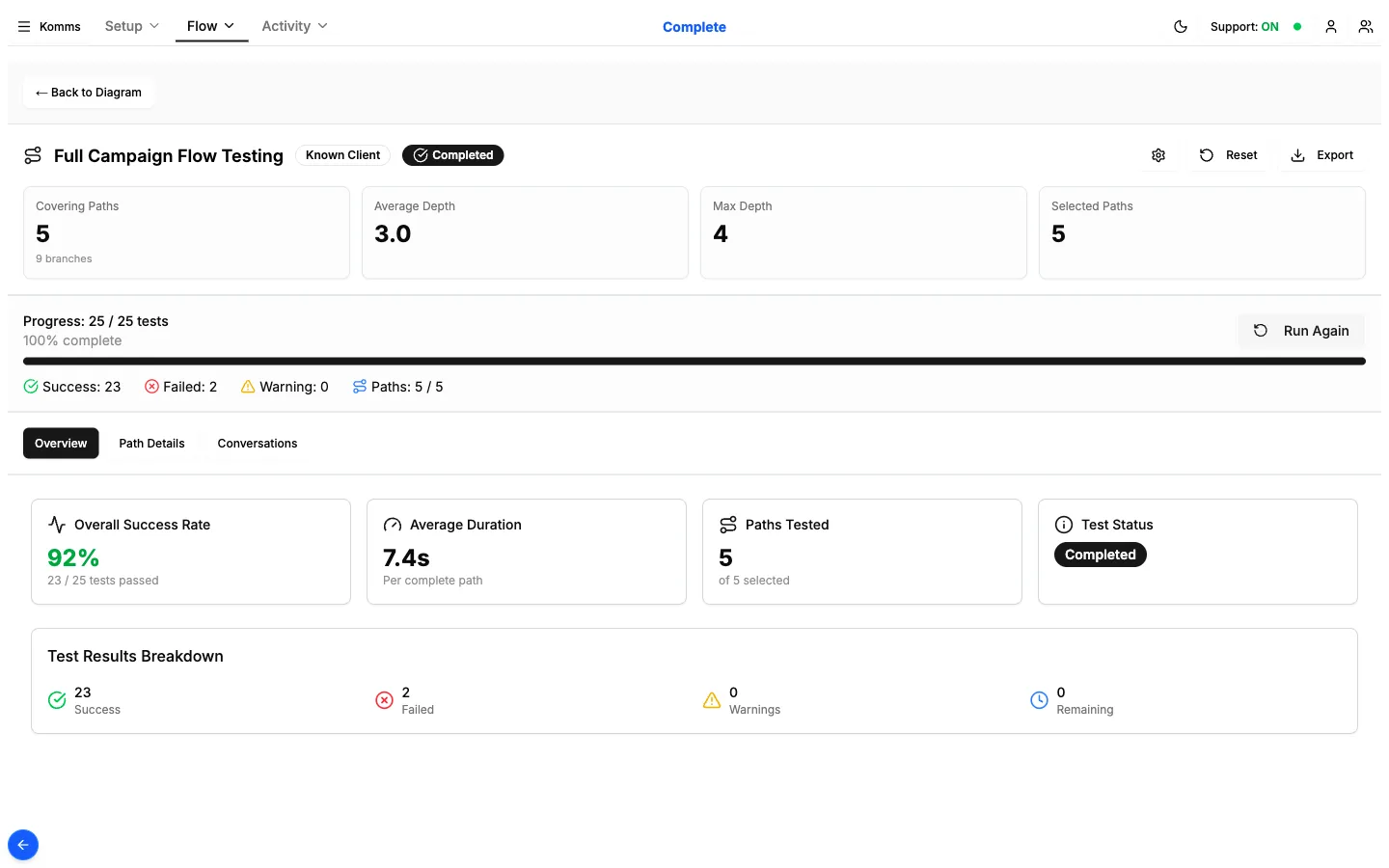
Full campaign test
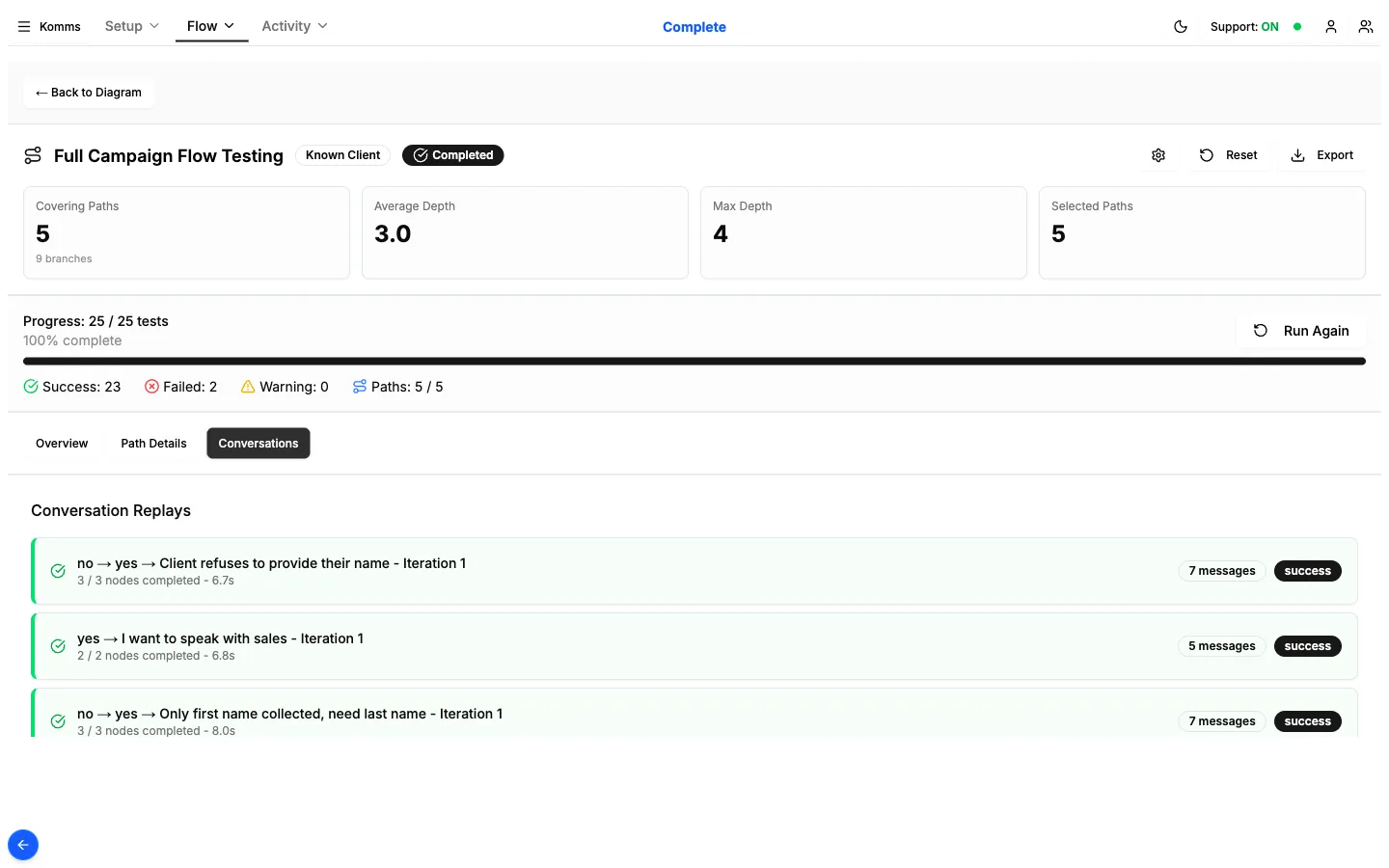
One click tests every path through the campaign with simulated callers. This run covered 5 paths with 25 test conversations: 23 passed and 2 failed, so you know what to fix before a real caller finds it.
Test conversations
Replay each test conversation to see what the caller said, which steps the agent completed and how long it took.
Test chat
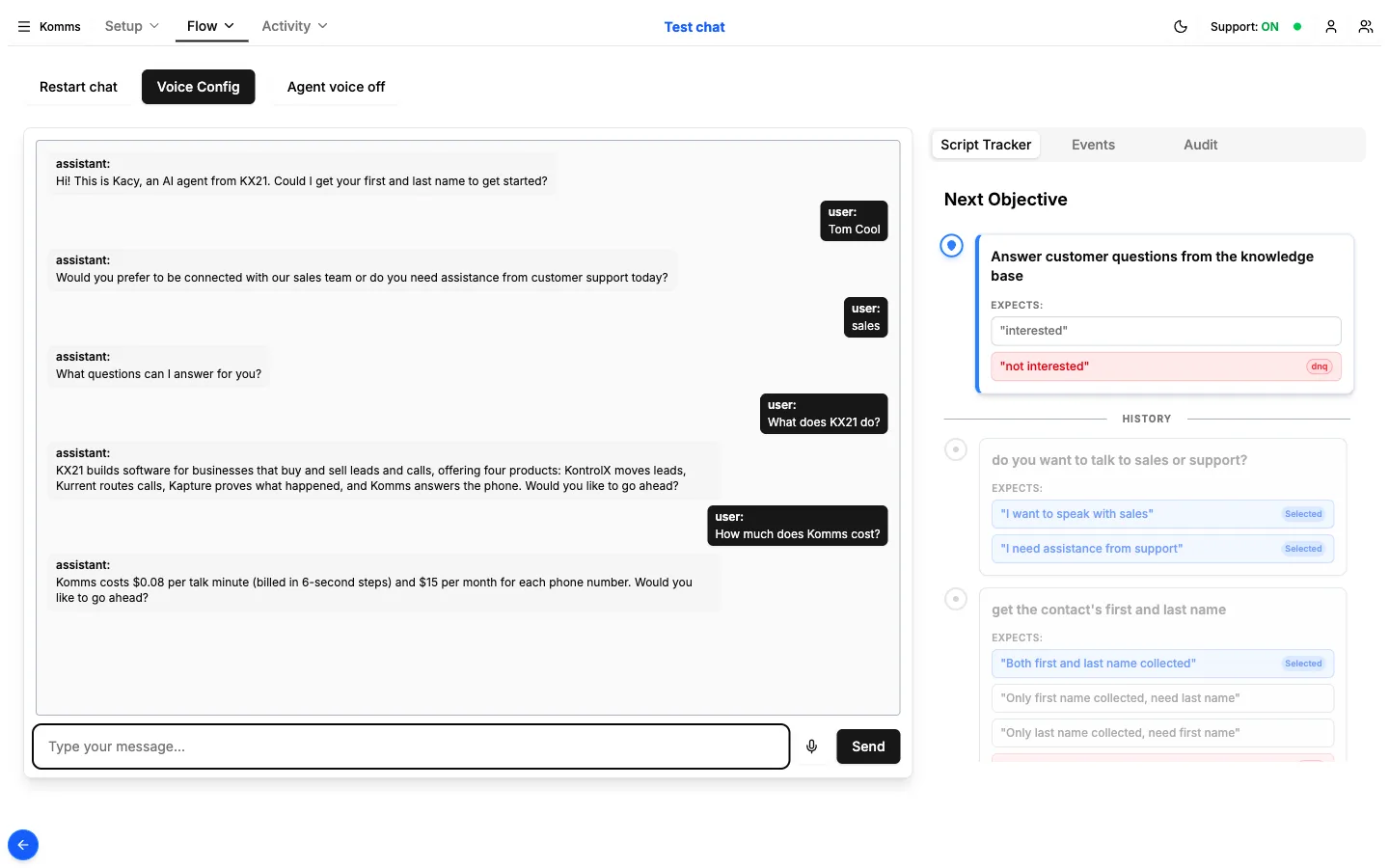
Try the campaign as a caller or a chat visitor before it goes live. The tracker on the right shows which step the agent is on.
Activity
What happened on every call and chat.
Dashboard
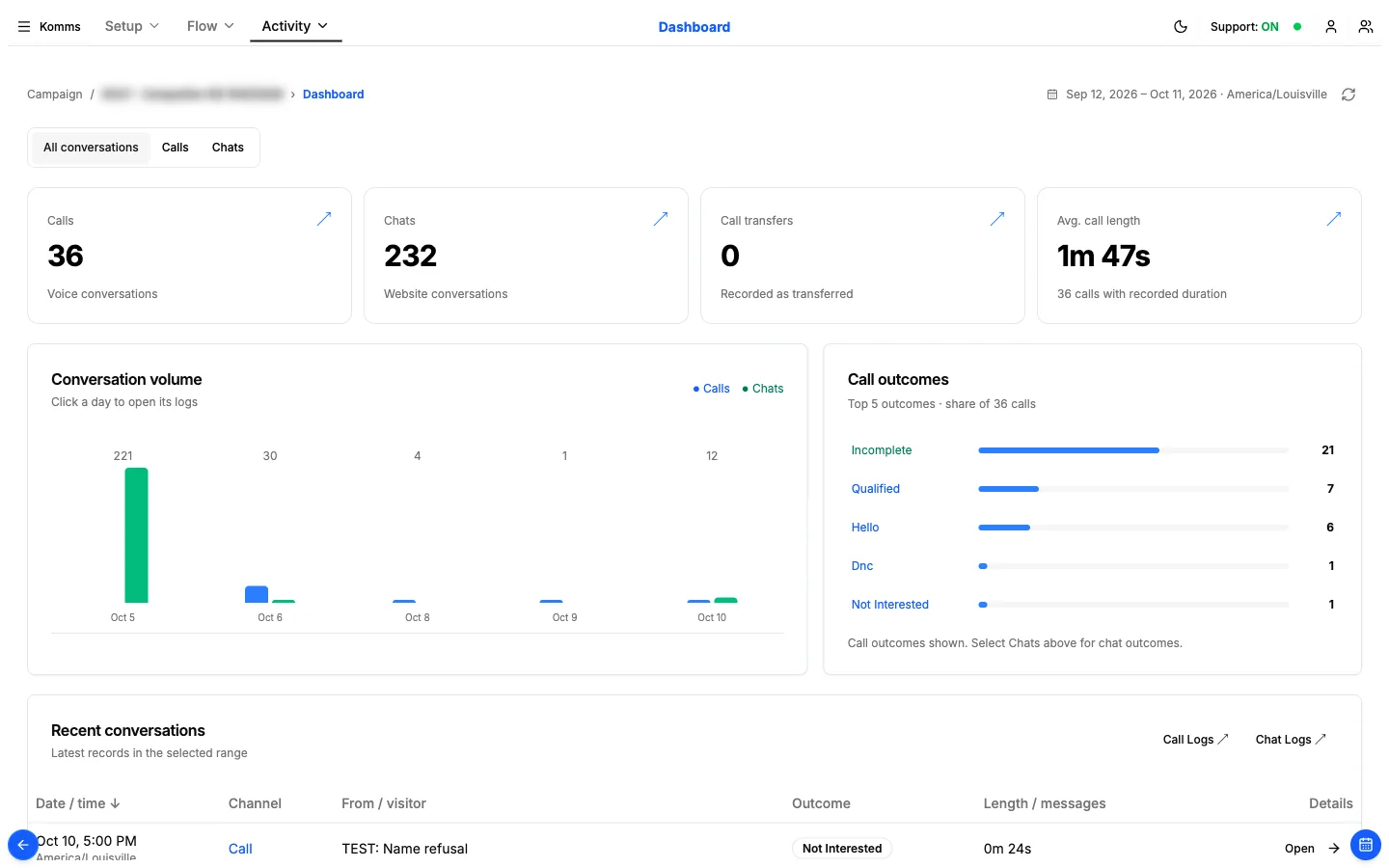
Calls, chats, transfers and average call length, with volume by day and the top call outcomes. Click a day to open its logs.
Call Logs
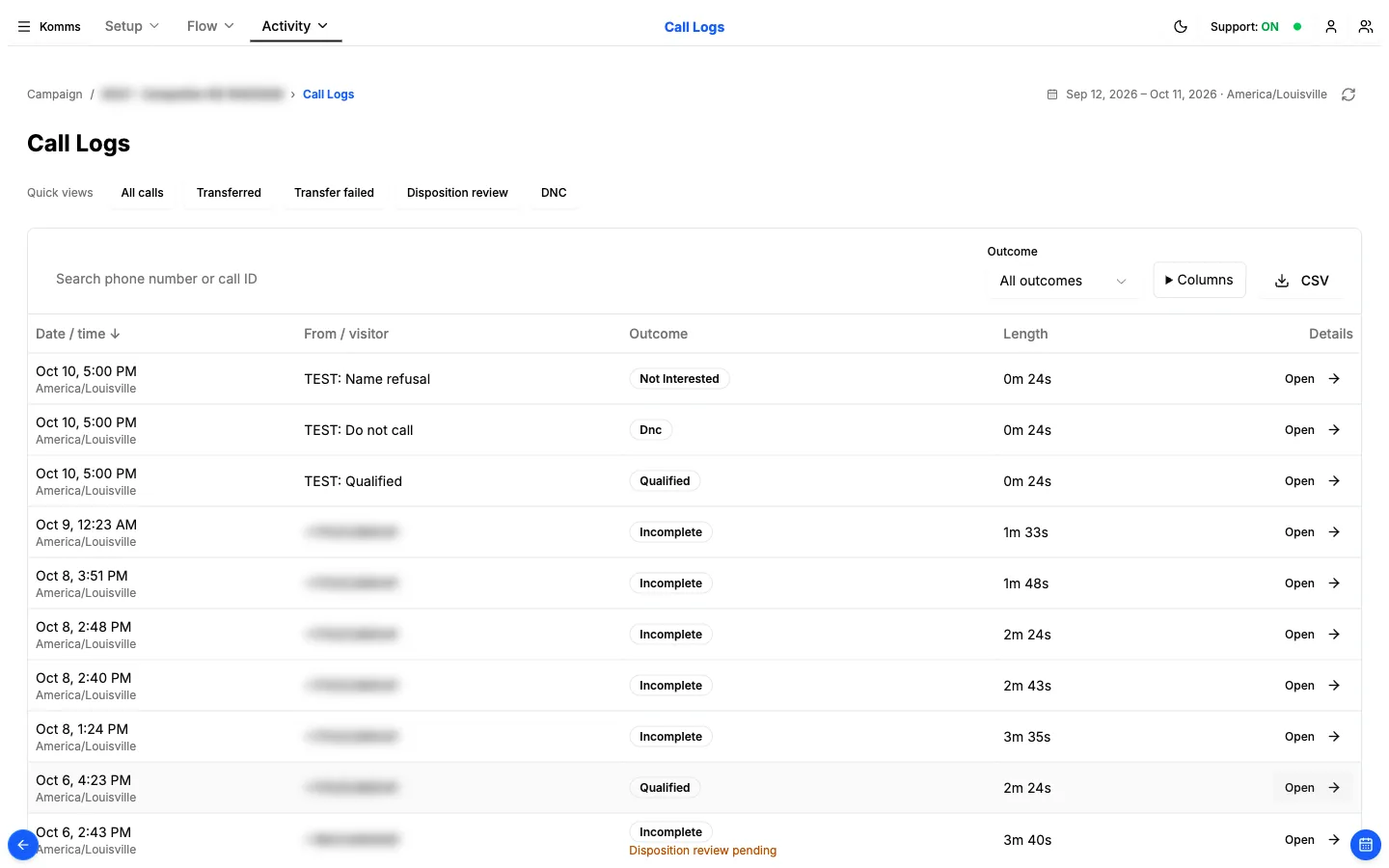
Every call with its outcome and length. Quick views for transferred, transfer failed, disposition review and DNC, plus an outcome filter, column picker and CSV export.
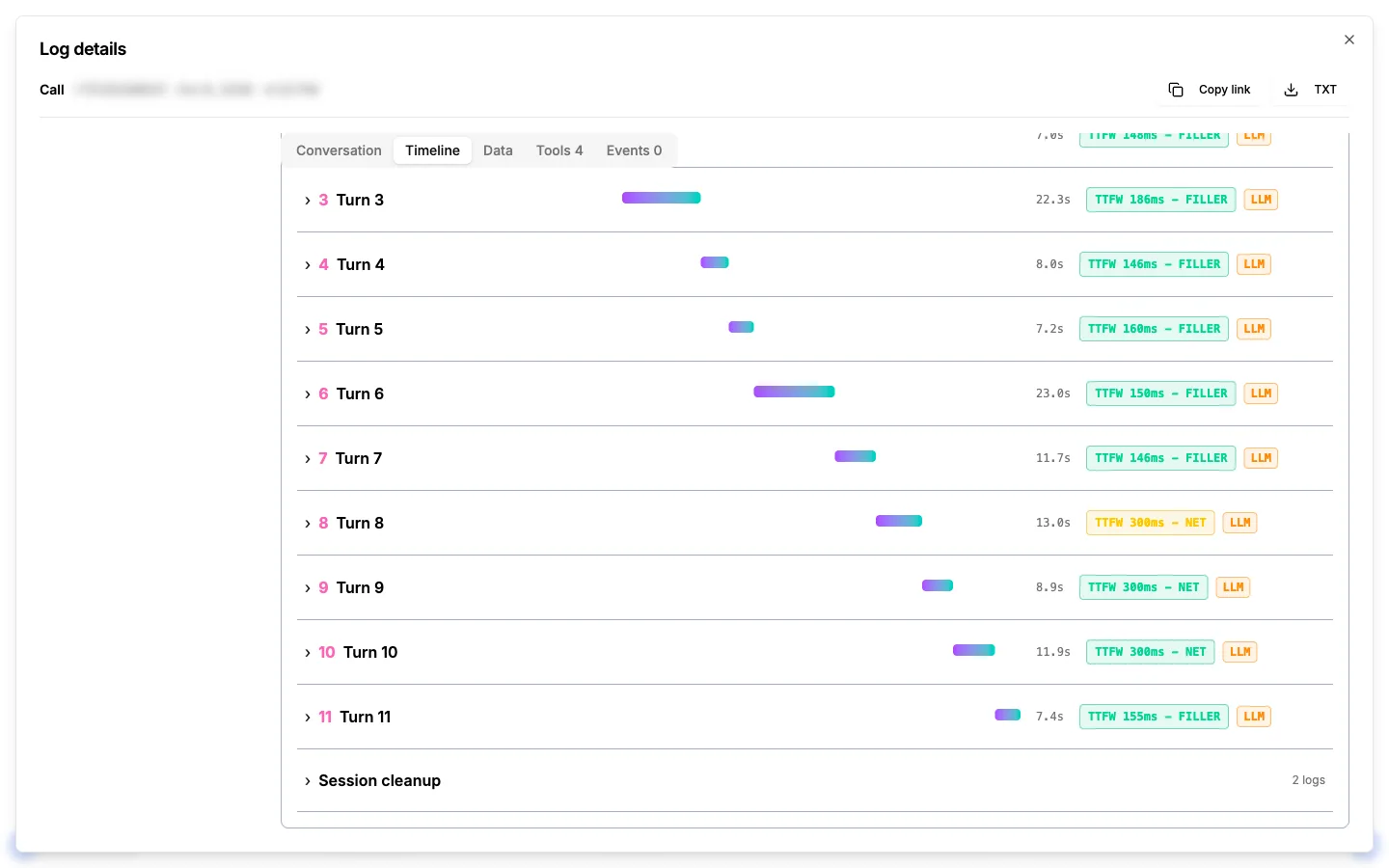
Call timeline
Open any call to see it turn by turn. Each turn shows how long it took and how fast the agent started its reply. The turns on this screen started in 146 to 300 ms.
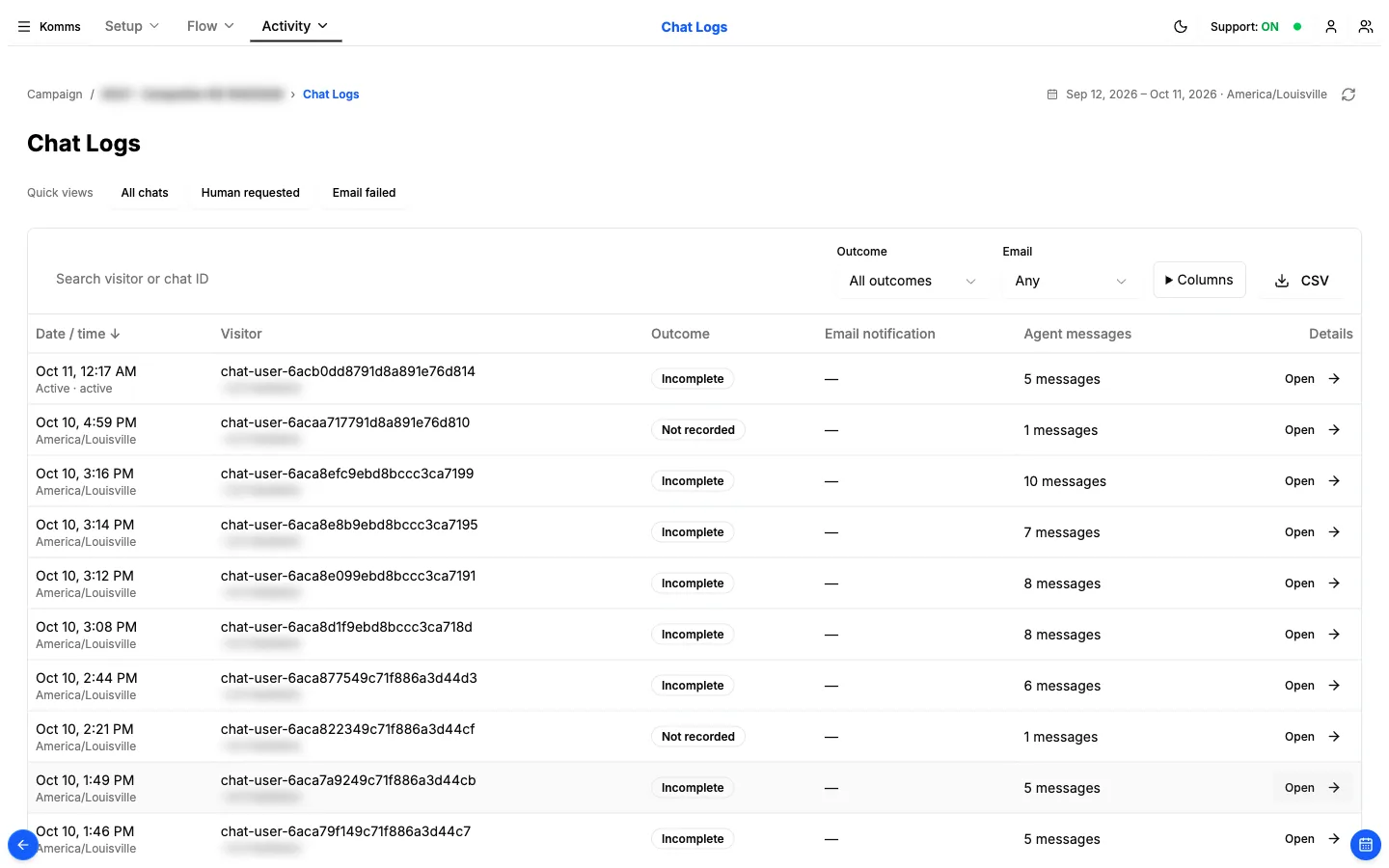
Chat Logs
The same view for website chats: outcome, email notification status and message count, with quick views for chats where a human was requested or an email failed.
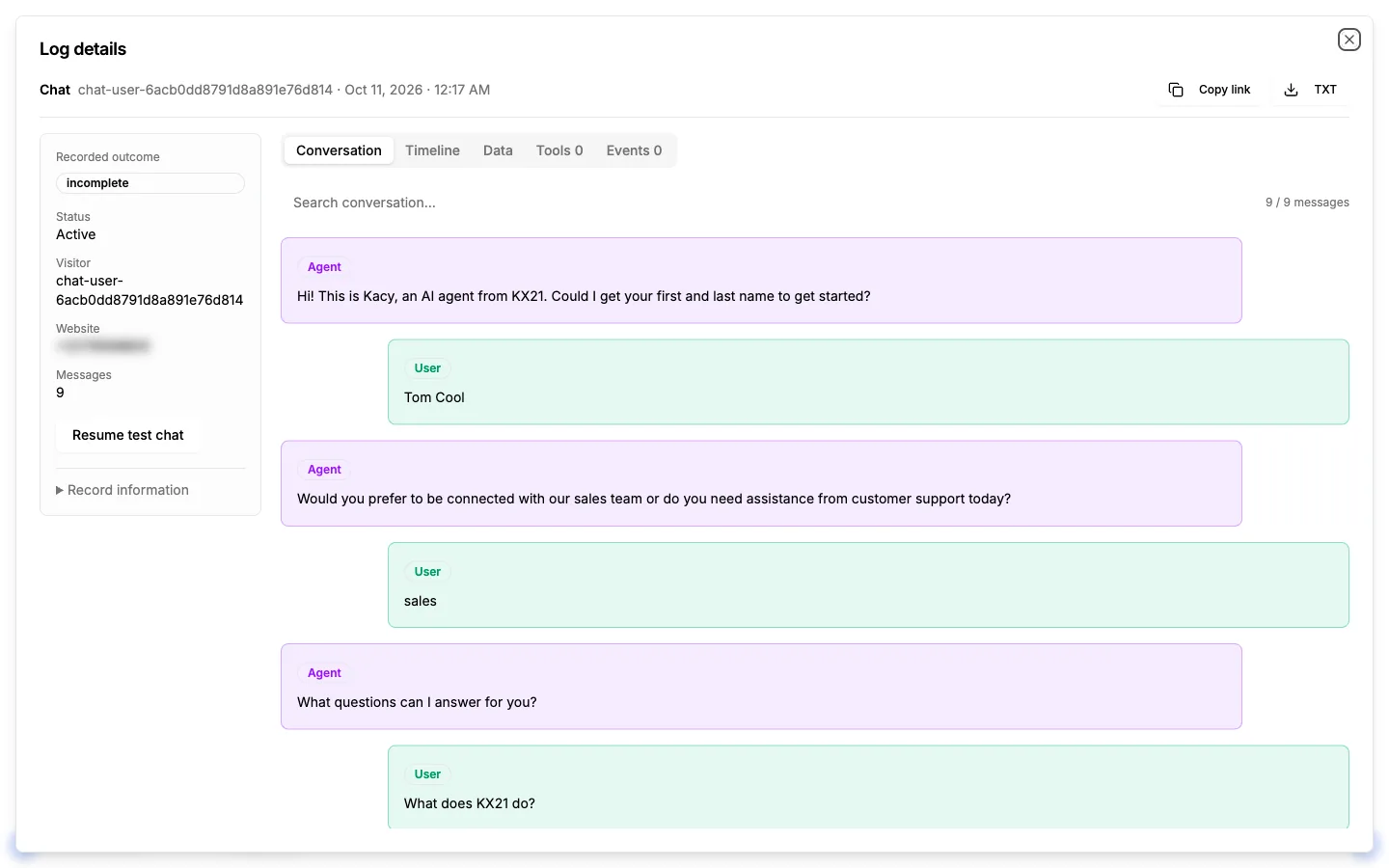
Chat detail
Open a chat to read it message by message, with the same timeline, data and tools tabs as a call.
Setup
What the agent knows and what it connects to.
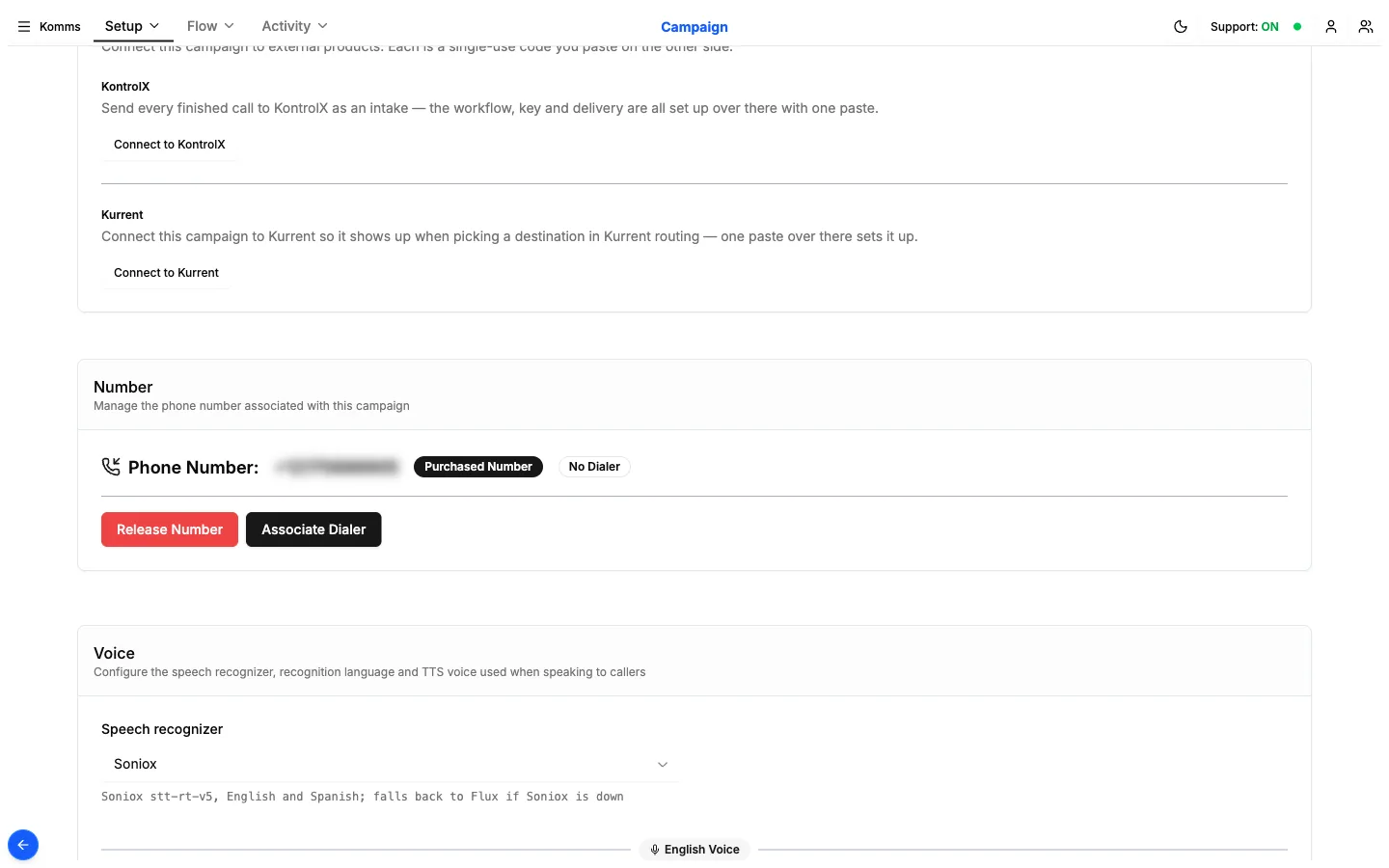
Campaign
Connect the campaign to KontrolX or Kurrent by pasting a code, give it a phone number, and choose the speech recognizer and voice.
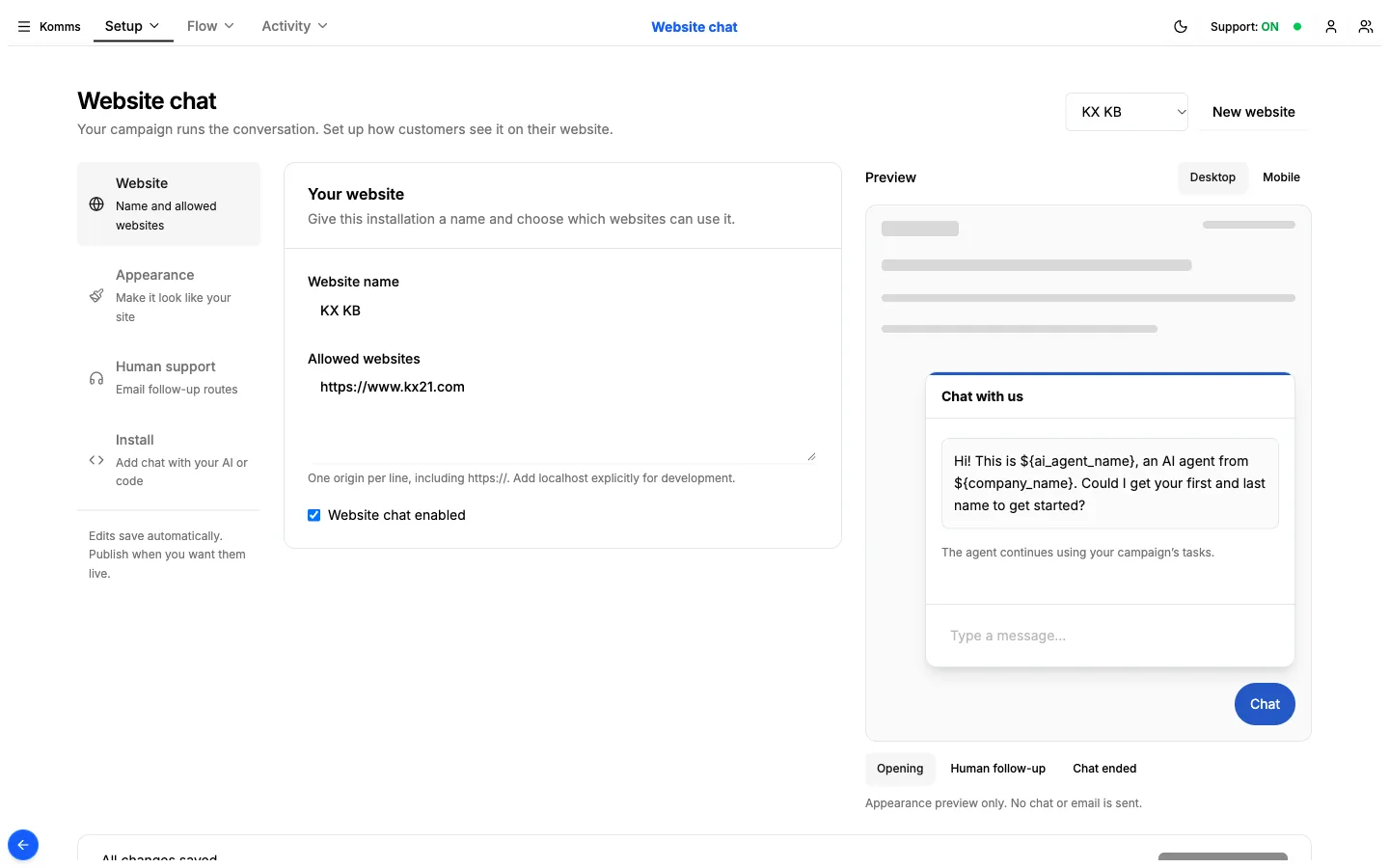
Website chat
Put the same campaign on a website as a chat. Set the allowed sites, match the look of the site, route human-support requests by email and install with a snippet.
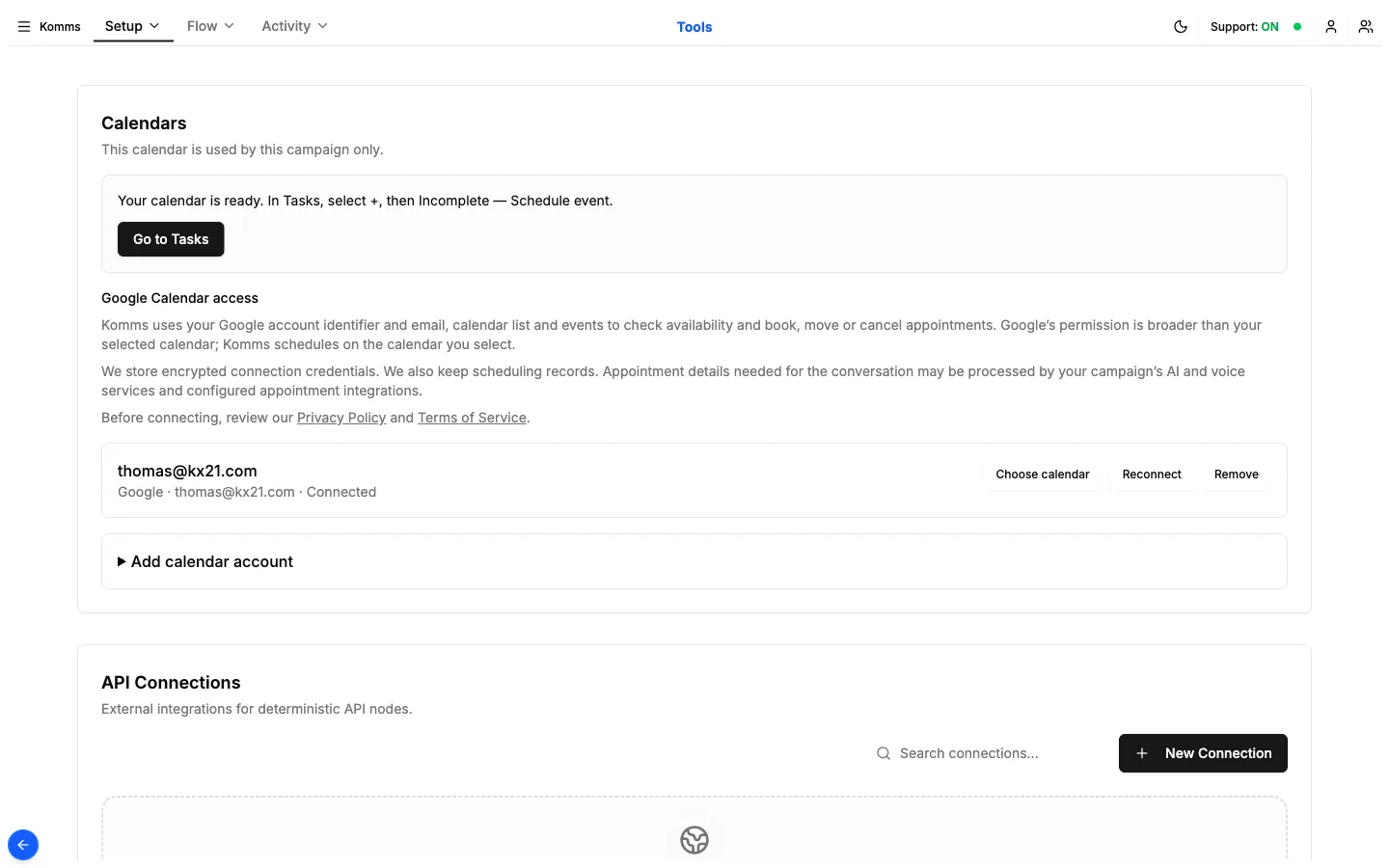
Tools
Connect a Google Calendar so the agent can check availability and book, move or cancel appointments.
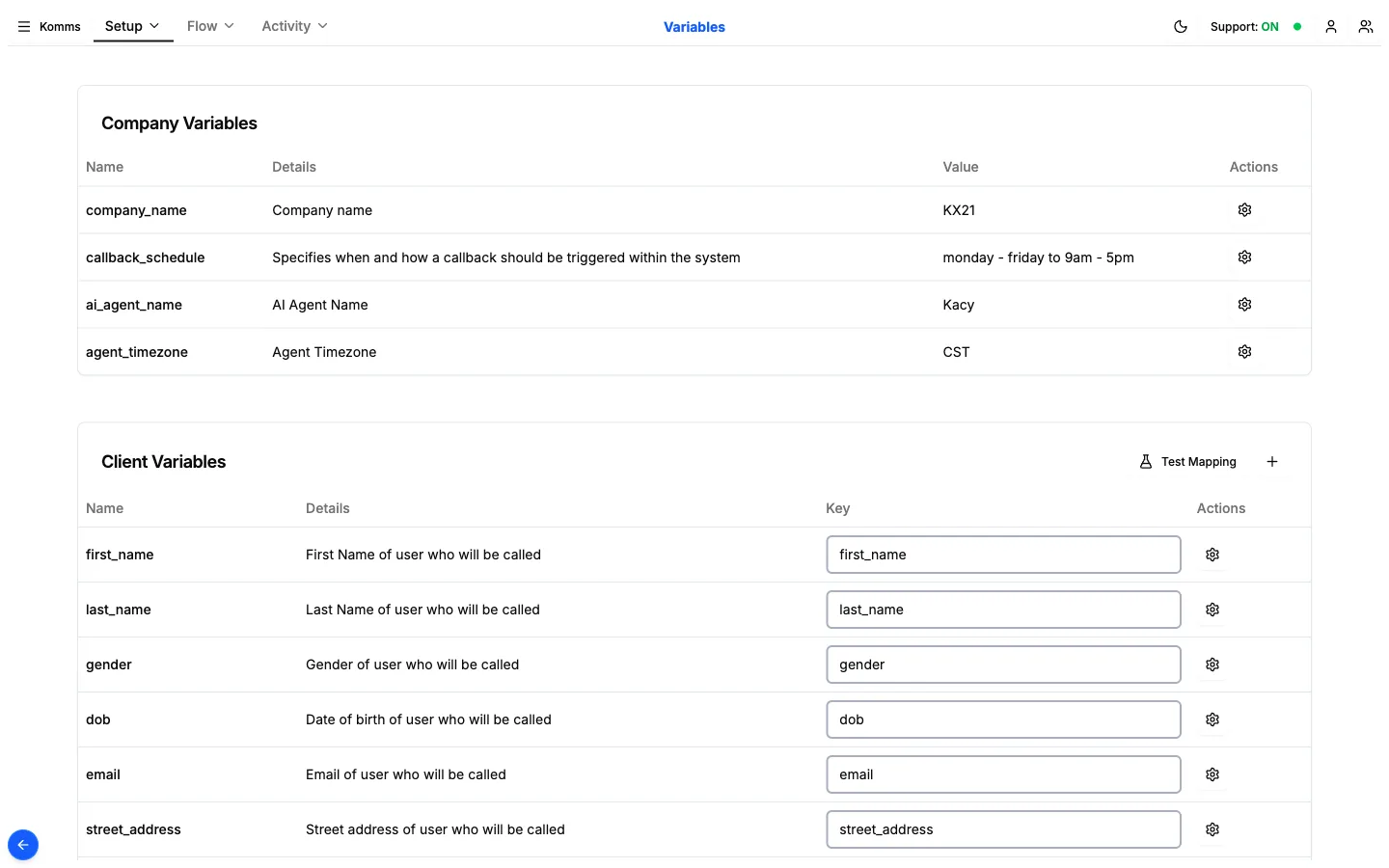
Variables
Company details and the caller fields the agent can use and collect.
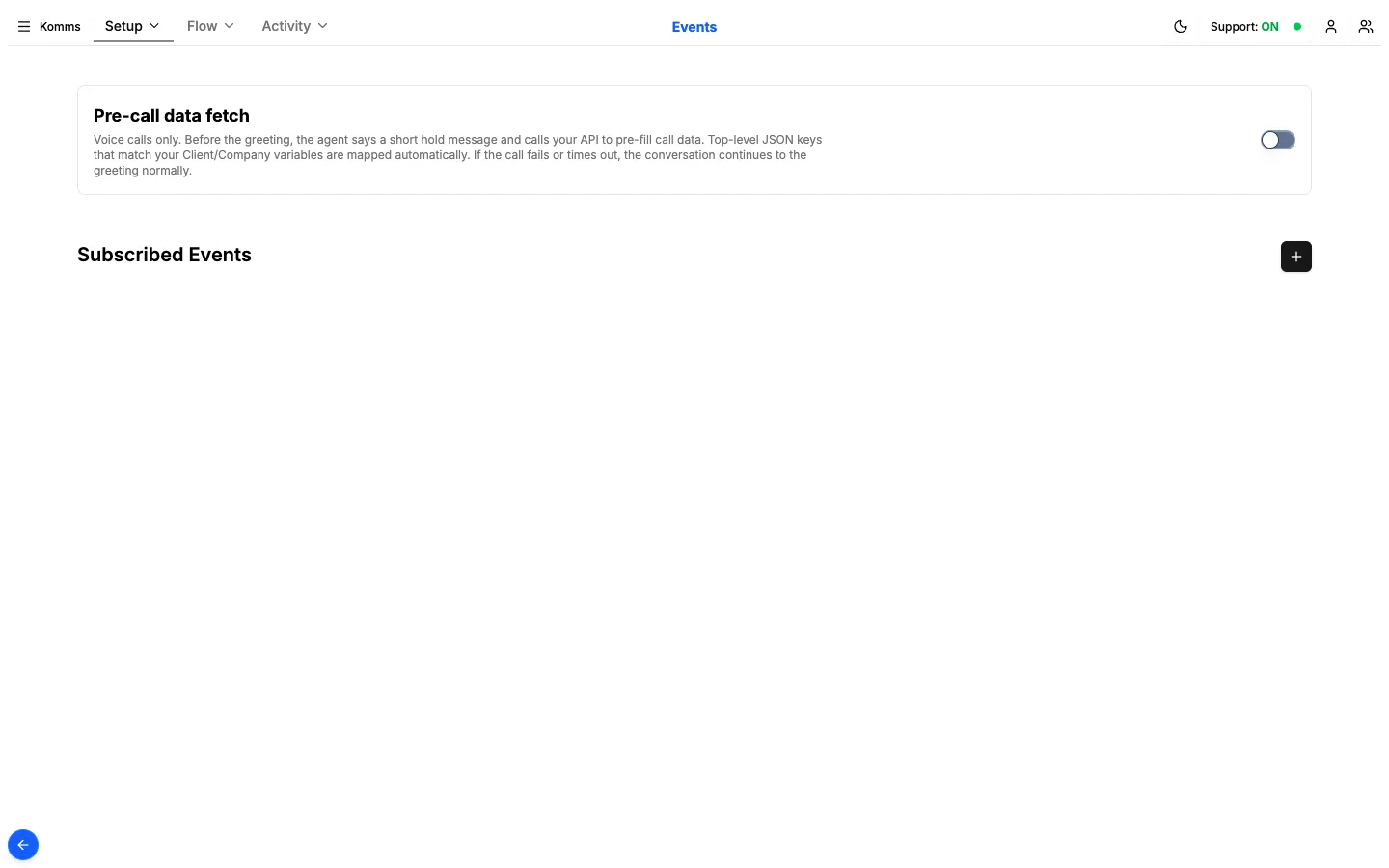
Events
Fetch data from your API before the greeting, and subscribe to call events.
Screens captured October 10–11, 2026 from a KX21 test campaign. The calls and chats shown are our own test conversations. Phone numbers and the campaign name are blurred.